

Would you like to give your checkout page a professional design without building one from scratch? Easy Digital Downloads includes a library of ready-made checkout templates, each design built with Elementor to drop straight onto the WordPress checkout page you already have.
This guide walks you through accessing the EDD Checkout Templates library and importing a template onto your checkout page.
Requirements: Importing a checkout template requires Easy Digital Downloads (Pro) installed and activated with a valid license and the Elementor plugin (version 3.35.0 or higher). Elementor’s Flexbox Container feature must also be turned on under the plugin settings.
Finding the Template Library
To get started, we need to open the EDD Checkout Templates library.
From your WordPress admin sidebar, go to Downloads » Settings.
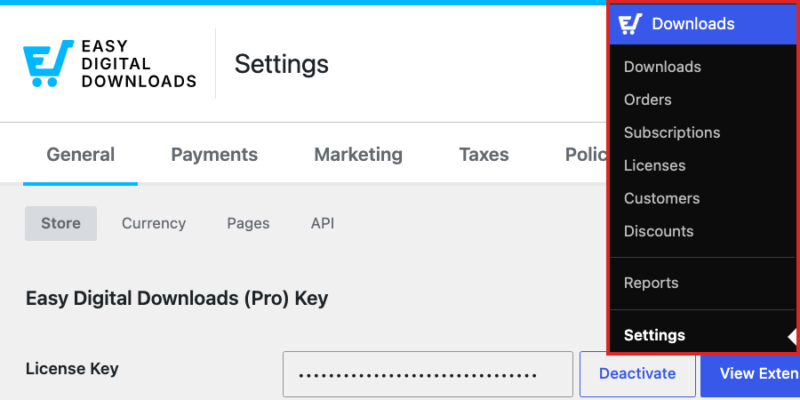
The library lives with your page assignments.
From the General tab, select the Pages tab.

From here, find the Primary Checkout Page row. Below it, click Browse Templates.

Clicking that button opens the EDD Checkout Templates library, which you can also reach from inside Elementor.
Finding the Library in Elementor
If you’re already editing your checkout page in Elementor, you don’t need to go back to the settings screen. From the top left corner of the editor, click EDD Checkout Templates.
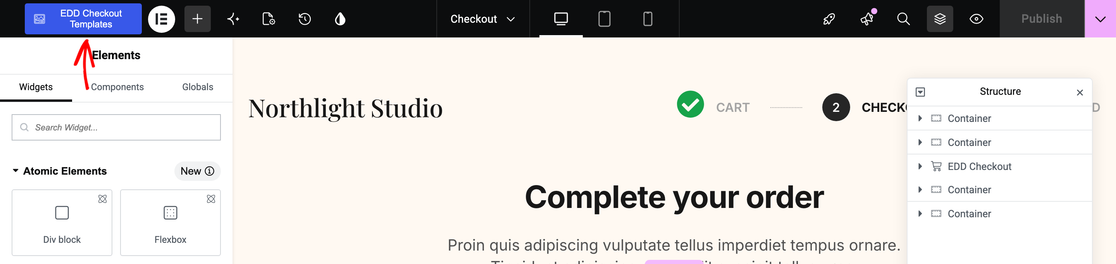
Both routes open the same library, so either one works.
Browsing and Previewing Templates
The library opens with every available EDD Checkout Template laid out in a grid. Each card shows a thumbnail of the design, a short description of how it’s built, and the editor it needs (i.e., Elementor). Each card also gives you a Preview button and an Import button.
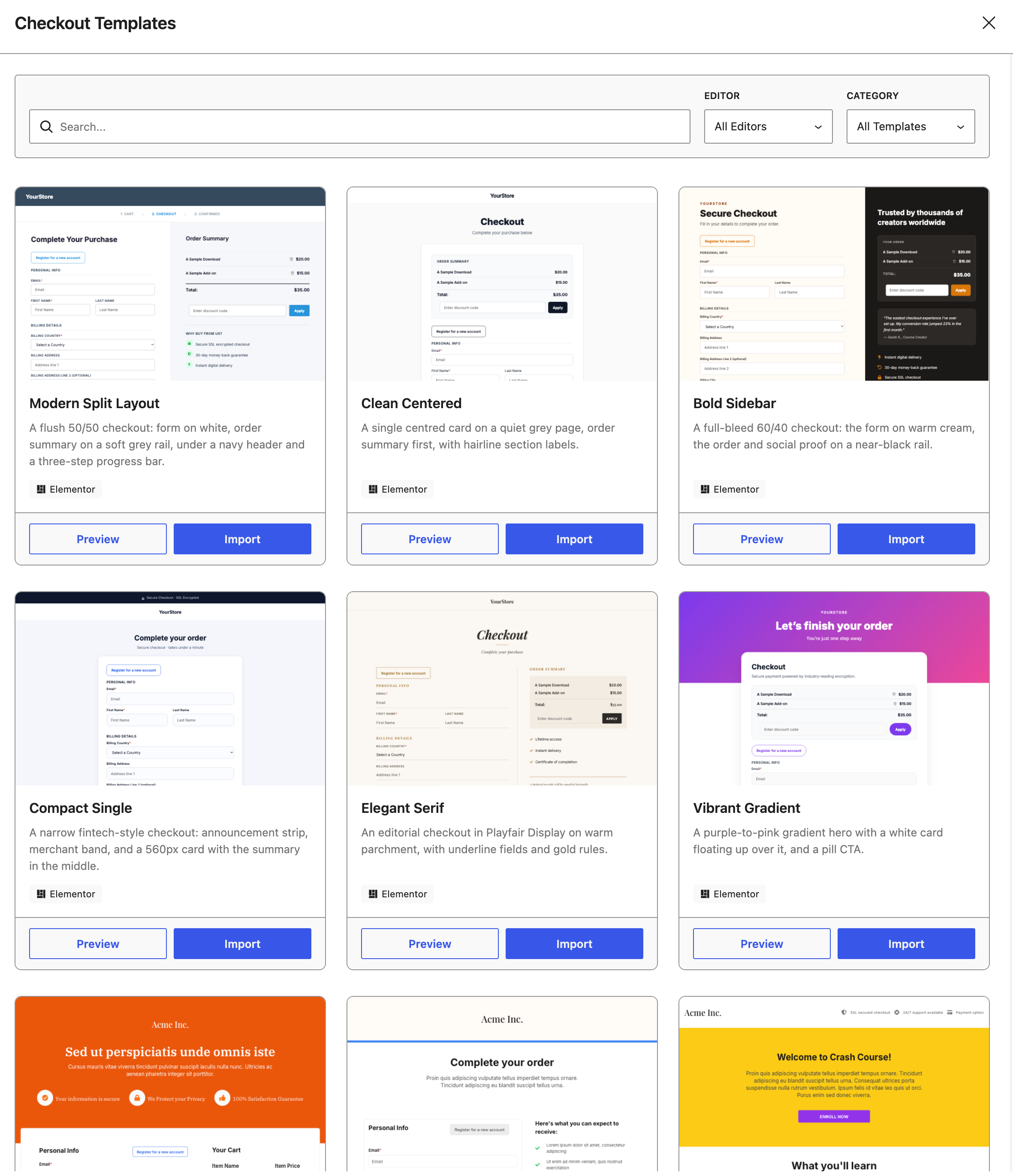
The designs vary in layout and styling, but they share a goal: a clean, modern checkout that keeps your buyer focused and builds trust.
With every template in one place, the search and filter controls help you narrow the grid down to the styles you care about.
Searching and Filtering the Library
To narrow the grid down by wording that appears in the template descriptions, type into the search field. Searching for guarantee, for example, returns the templates whose descriptions mention one.
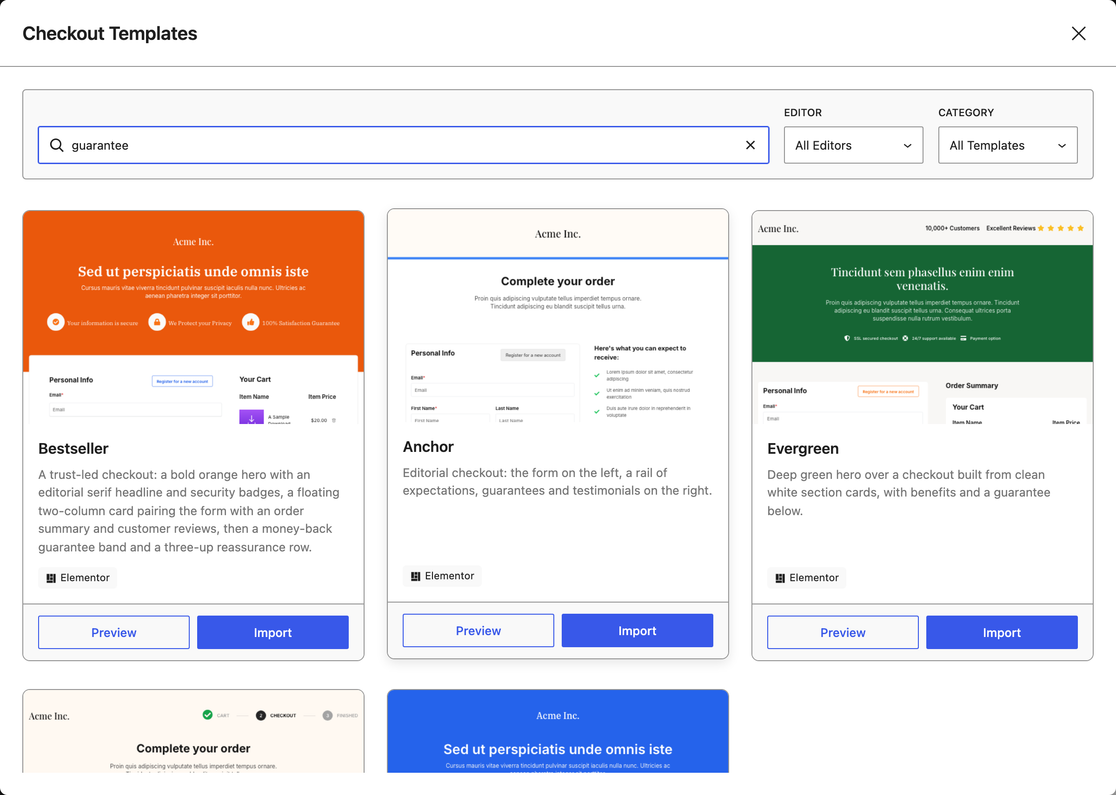
Next to the search field sits the Editor menu, which filters by the page builder a template is built for. It opens on All Editors. Elementor is the only other choice there for now because every template is currently built for it.
You can also filter by style using the Category menu, which opens on All Templates. It groups templates by the qualities they lead with, such as Trust, Social Proof, Two Column, and Progress Steps.
Note: Searching and filtering by category are not the same thing. The search field looks at the description text, while the Category menu uses the tags assigned to each template. The two return different sets of results.
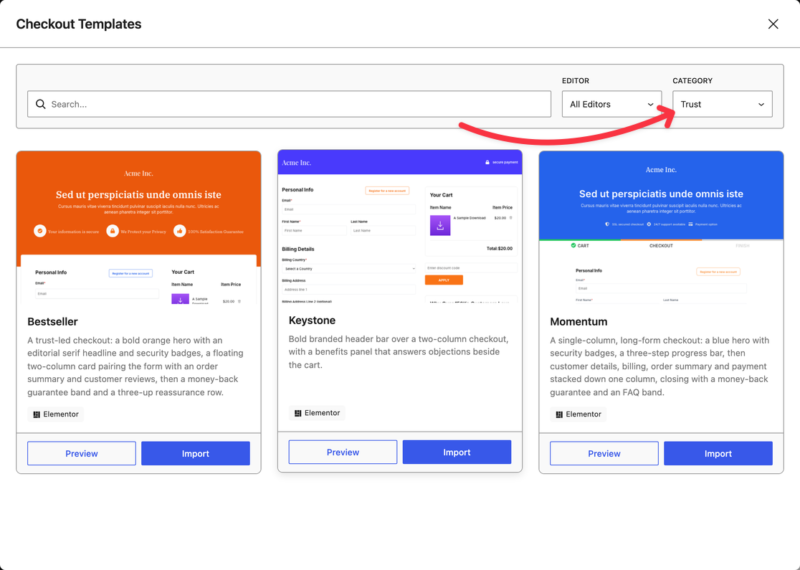
Once you’ve narrowed the grid down to a few contenders, take a closer look at each one.
Previewing a Template Before You Import
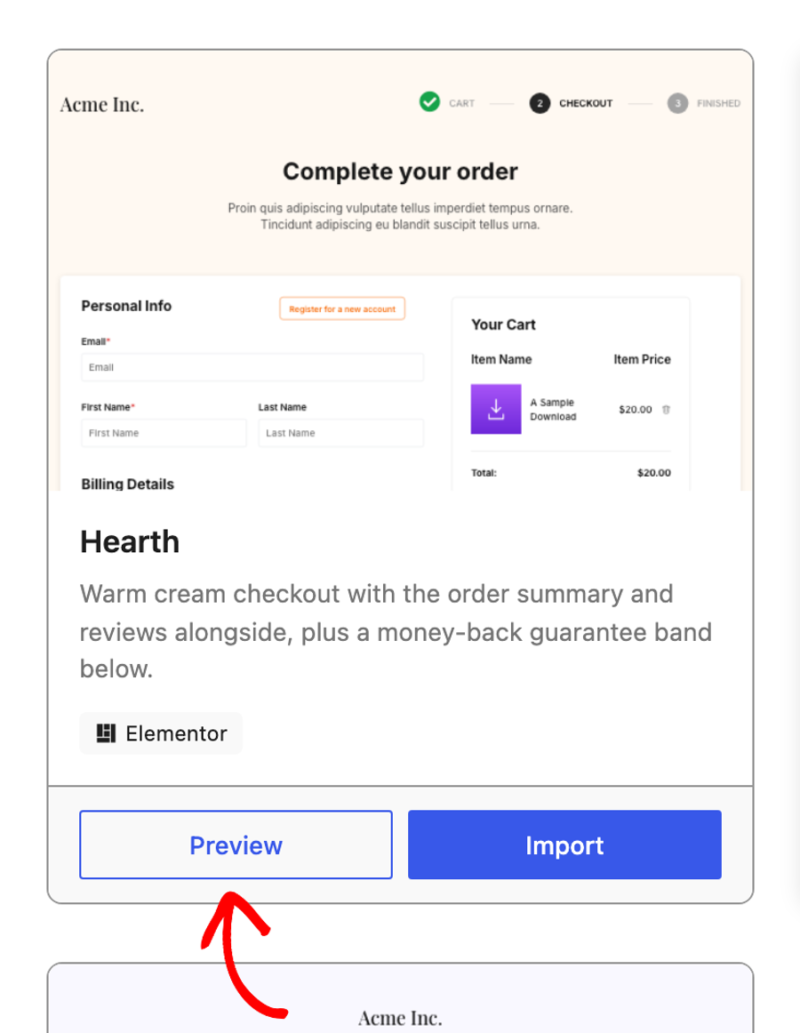
Every card has its own preview, so you can see a full design before you commit to it. On the template you’re considering, click Preview.
The preview opens in a new browser tab and shows the whole checkout design end to end. At the top of the preview, use the Desktop, Tablet, and Mobile buttons to see how the template handles smaller screens.
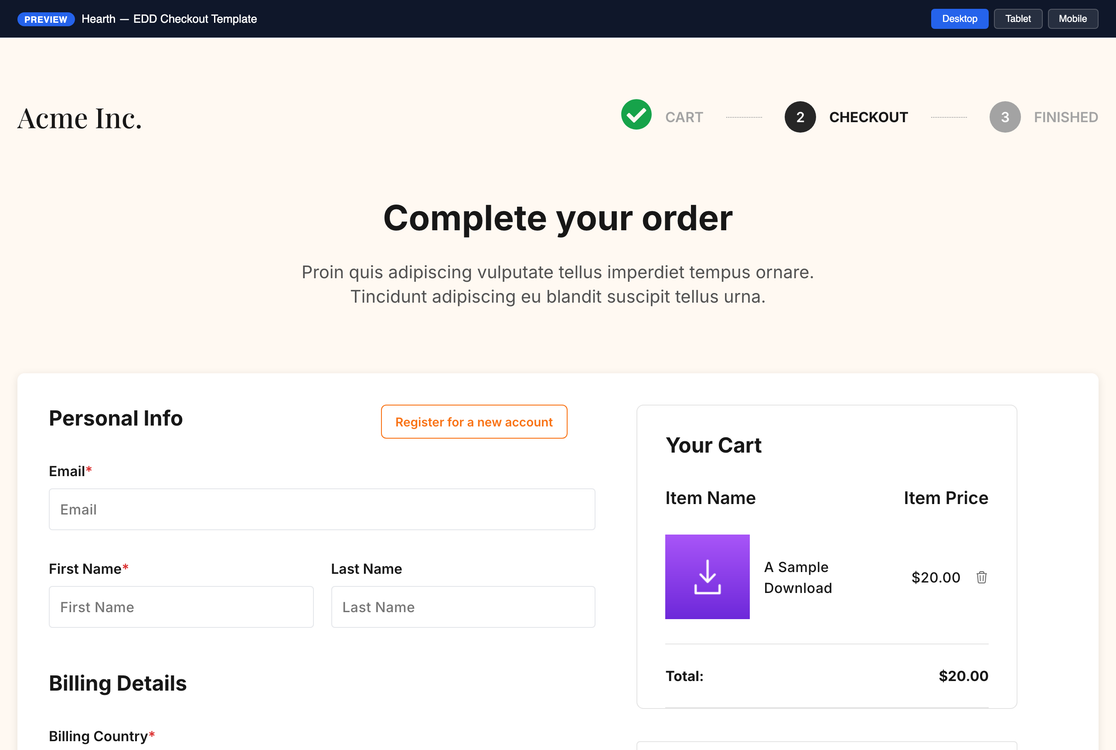
Previews are sample designs filled with example products and placeholder wording, so they show you the layout rather than your own store’s content.
Browsing Templates Without Elementor
Templates are built as Elementor layouts, so Elementor has to be installed and activated with the Flexbox Container feature enabled before you can import one. Without these, you can still open and browse the template library and use Preview in full.
But on each card, the Import button is unavailable. A note explains which version of Elementor the template needs, or whether you need to enable Elementor’s Flexbox Container feature under the plugin’s Editor settings.
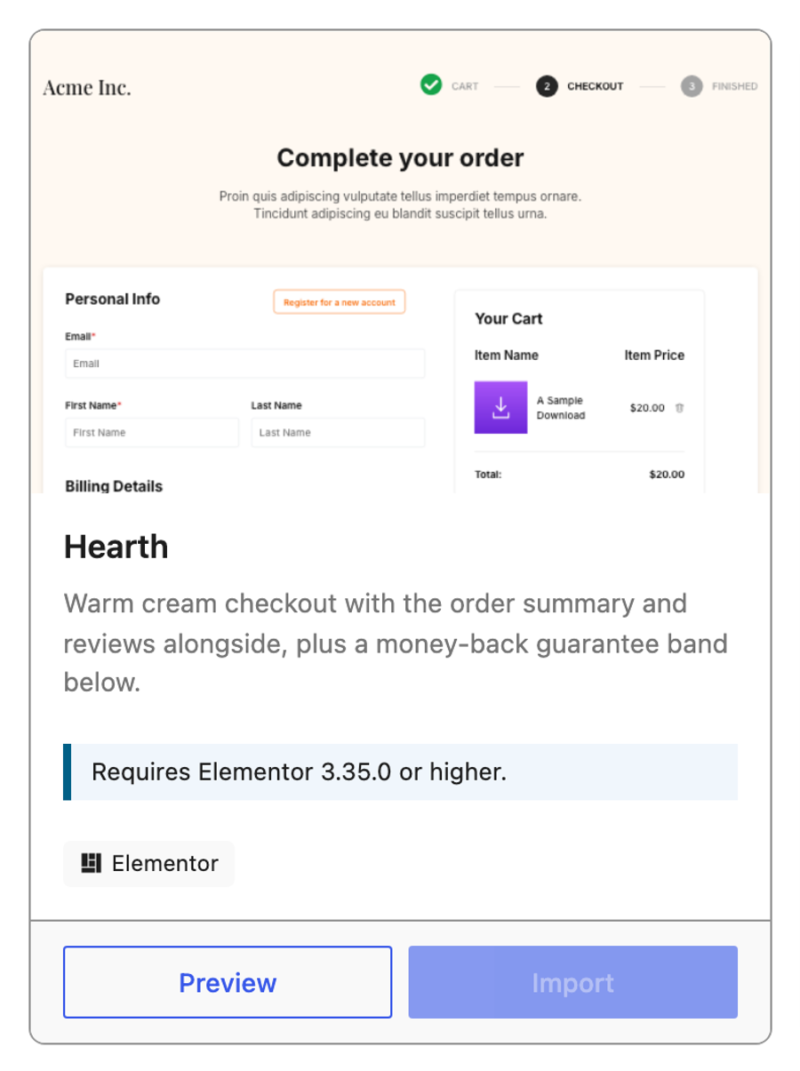
With Elementor (and an active EDD Pro pass), importing is available on every card. Next, we’ll bring one of these designs onto your checkout page.
Importing a Template
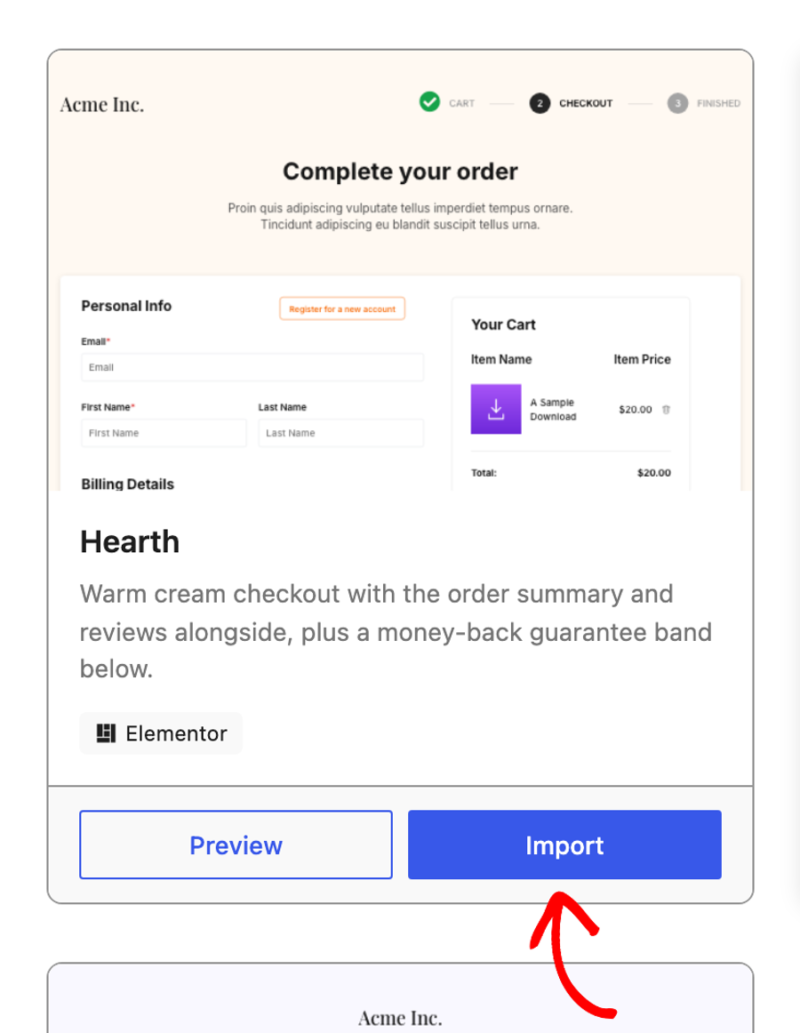
Once you’ve settled on a template, click Import on its card.
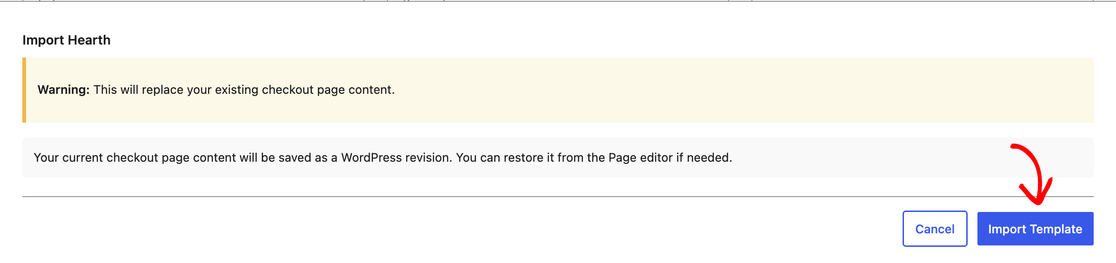
Easy Digital Downloads then asks you to confirm, because importing replaces whatever is currently on your checkout page. Your existing content is saved as a WordPress revision first, so it isn’t lost. When you’re ready to go ahead, click Import Template.
The import takes a few seconds. When it finishes, you’ll see a confirmation along with three choices.
- Edit Page: opens the imported design in Elementor. Choose this if you want to start replacing the placeholder wording right away.
- Restore Original Checkout: puts your previous checkout page back. Choose this if the template isn’t the right fit for your store.
- Close: returns you to your settings. Choose this if you want to keep the template and edit it later.

Note: Templates arrive with placeholder headings and sample wording in the sections around the payment form. Replace that text with your own to finish the page.
Undoing an Import
If the template isn’t what you expected, you can reverse it from that same confirmation panel. From there, click Restore Original Checkout.

In the confirmation that follows, click Yes, Restore.

This brings back the checkout page exactly as it was immediately before you imported. It undoes your most recent import rather than resetting the page to a blank default.
Viewing Your New Checkout Page
To see the result the way your customers will, visit your checkout page with a product in the cart.
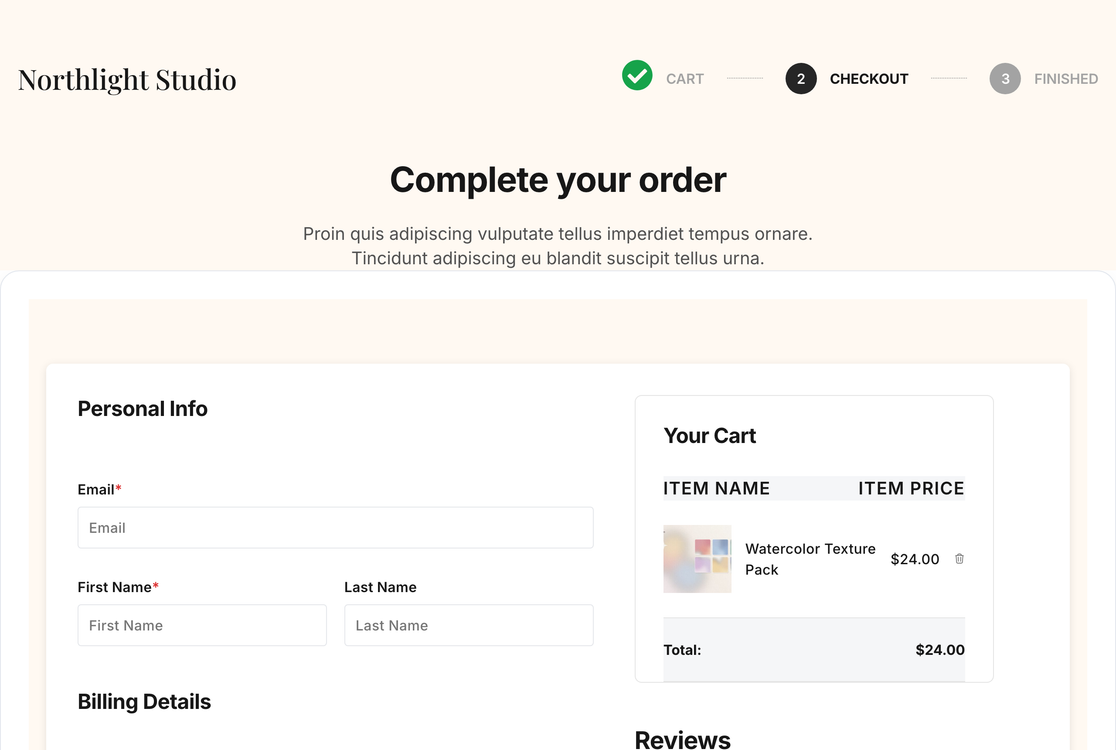
The payment fields, cart contents, and totals are all live and working. Everything around them, including the headings, the template’s sample wording, and the customer reviews, is yours to edit in Elementor.
That’s it! You’ve imported a checkout template and your new checkout page is live. Next, learn how to customize your checkout in Elementor, where you can restyle any section and change what the cart shows.
FAQs About Using EDD Checkout Templates
Below, we’ve answered some of the most common questions about checkout templates in Easy Digital Downloads.
Do I need Elementor’s paid version to use checkout templates?
No. The free Elementor plugin is enough, as long as it is version 3.35.0 or higher.
Will importing a template delete my current checkout page?
Importing replaces the content on your checkout page, but it doesn’t discard it. Easy Digital Downloads saves your previous content as a WordPress revision, and the confirmation panel also gives you a Restore Original Checkout button.
Can I look at a template without importing it?
Yes. The Preview button on each card opens the complete design in a new tab, and it works whether or not you can import.
How many checkout templates are there?
There are 11 templates in the library, with more added overtime. The templates range from single column layouts to two column designs.
What can I do if I don’t have Elementor?
You can browse the library and preview every template. Importing stays unavailable until Elementor is installed and activated, and each card tells you the version it needs.
Can I undo an import after I’ve closed the library?
The Restore Original Checkout button appears on the confirmation panel right after an import. Once you’ve closed the library, restore your previous content from the revisions in the WordPress page editor instead. See How to Undo Changes in WordPress with Post Revisions for a step-by-step walkthrough of restoring an earlier version of a page.